apple

Copying Other Websites During a Redesign

by David Lee King on September 16, 2011

During my library’s last website redesign, we went through quite a few design iterations, and we still weren’t happy. Two people in our Creative Group team (more on that in the next post) … ok, our head of marketing and the deputy director … kept sending us website examples they liked. Sites like shoe stores or clothing shops. Yes, they were beautiful websites, and nicely designed. But they weren’t really all that similar to a library website.

One big difference – these attractive websites did one thing well – they sold shoes or clothes. They didn’t have any catalog to speak of. The websites were full of single pages that pointed to single items.

But a library website has at least two basic needs – a site that talks about the library, and shares useful stuff. And we have a library catalog. So it didn’t really make much sense to me to base our library website design around a site that only does half of what we do.

So I started poking around, looking for websites that focus on two things:

  1. stuff, like a storefront.
  2. a “catalog” of some sort.

Amazon and Zappos? Pretty much all catalog. News sites? Pretty much large multi-blog sites – focusing on stuff. Then it dawned on me – library websites are like Apple. Apple essentially has two separate websites – the main site that focuses on their stuff, and their “catalog” – their online store.

We based our redesign around Apple, in these ways:

  • Top horizontal navigation with drop down menus. We also found some “nav bar inspiration” at NPR’s website.
  • Focusing on a single large ad, then a couple of smaller ones, then more detailed content below that – based on many of Apple’s pages. This directs customers to a few things that you REALLY WANT THEM TO DO, while still having easy access to everything else.
  • A prominent link to the store. That’s where you’d click “Find Stuff” to get to our three catalogs (catalog, digital downloads catalog, and DVD dispenser catalog).

So far, it’s working out great – few complaints, lots of compliments. Our public trainers have told us they cut down training on how to use our website from an hour to 10-15 minutes. Fingers crossed that it stays that way for a while!

1 comment

Video Creation at the Library

by David Lee King on July 27, 2011

The video in this post is just me, playing around with a greenscreen for the first time (and playing around with the new Final Cut Pro X – nice app!). So in the video, first you’ll see me with a green background. Then I replace the green color with black, and then I replace it with a silly image.

Yay – I figured out how to use our greenscreen!

Towards the end of the video, I show off the beginnings of my library’s video studio (and I have to say – I really need to work on my video narration skills. I can do it pretty well when I do a little prep work, but not so much when it’s off-the-cuff. Yikes!).

So, our video studio. It’s really just some office space we weren’t using anymore. We cleaned it out (it had turned into storage), painted one wall with a bucket of chroma key greenscreen paint, and set up a couple of computers in the room:

  • Computer #1: A PC that we use for creating screencasts. We use Techsmith’s Camtasia.
  • Computer #2: an Apple iMac with Final Cut Pro, iMovie, GarageBand, etc on it. We use it for video editing, and for creating our HUSH podcast series.

Assuming our Board of Trustees votes our 2012 budget into existence next month, I’ll be able to buy some more video equipment next year! I plan to get a backdrop stand, some backdrops, and a lighting set. Most likely, I’ll also buy some microphones – especially some wireless mics. Take a good listen to the audio in my video – adequate, but not great. I used the internal mic on the video camera, which picked my voice up fine … it also picked up a bunch of room sound. That can be easily fixed with better mics!

That’s what we’re doing, anyway. How are you growing your organization’s video setup?

6 comments

Doing a Presentation with the iPad

by David Lee King on July 1, 2011

A couple of weeks ago, I gave a presentation using my iPad, and it worked out pretty well! I used the iPad version of Keynote (Apple’s Powerpoint-like presentation software). Keynote has a handy-dandy presenter notes feature that is really easy to use, so your notes are on your screen, and your slides still appear on the LCD projector – in a much easier and user-friendly way than Powerpoint.

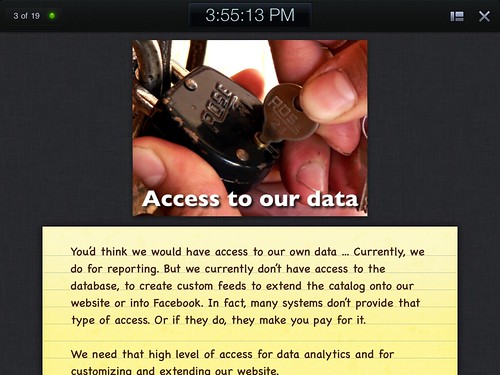
Guess what? The iPad version of Keynote does the same thing. The screengrab above shows the presenter notes view on the iPad. If there’s more text than shows on the screen, just use your finger to scroll down to the rest of the text.

You also use your finger to advance slides – just swipe the screen, and slides advance. Swipe the other way to go back a slide. Pretty simple to use!

Now – how did it work?

  • It was really easy to set up and use – I just needed to get the iPad VGA adapter, and plug that into our LCD projector. Then the iPad magically did everything else, so I didn’t have to mess with screen resolution compatibility, etc.
  • I was able to stand up in front of the room (I was presenting for the library’s Board of Trustees, who sit at a long table) with no podium – I just held the iPad, and finger-swiped away.

There were a couple of oddities, too:

  • If you stand with the iPad, you need to hold onto the VGA cable. Otherwise, the weight of the cable will pull iPad VGA adapter out of your iPad. Not good.
  • Finger swiping the slides felt a bit odd to me – I’m used to clicking a hand-held thingie to advance slides.
  • Most important – the on-screen slide appeared first, followed by the presenter notes, so there was a bit of lag time. It looked weird for a bit, so I was swiping back and forth, looking for the correct notes, until I figured out the 1 second lag. Once I figured that out, I was ok.

So – looking to do a presentation without having to lug around a laptop? You might consider using an iPad/Keynote setup – easy stuff!

7 comments

iPads in Libraries – Some Stories

by David Lee King on June 22, 2010

There are quite a few uses for an iPad in a library setting, and some libraries have already started experimenting. Here are two examples:

#1: Omaha Public Library

From Amy Mather – “For the past few years, the Omaha Public Library’s Summer Reading Program kick-off party has been held in Elmwood Park in Omaha and has attracted up to 2500 kids for kick-off activities including live music, games,  pony rides, etc. Although always a success, we had one glaring “missed opportunity” at these events: signing up kids & teens for the Summer Reading program “online” at an outside venue.”

“Gary Wasdin, director of Omaha Public Library, applied for a local grant to obtain 6 iPads in which we could use to signup kids & adults for the Summer Reading Program. The iPads would allow us to connect to the AT&T’s 3G network and signup patrons on the spot for the Summer Reading Program. On June 9th, we signed up over 500 kids, teens, and adults using iPads. The iPad allowed us to take the mobile library to the next level and we looked really cool too!”

#2: Genesee Valley Educational Partnership

From Christopher Harris – “I am at a school library system, a regional support center funded by NY state to provide services and resources for 22 small, rural school districts in Western NY. Since we got the iPads so late in the year, right now we are just loaning them to teachers and librarians to build awareness in our districts. Over the summer, we will be working on developing some best practice guidelines and suggested uses for the devices. We hope to begin lending them for student use in the fall, though they may be for in-school use only the first year as they remain a very high-value theft target. We have 150 iPod shuffles we send home with students without any problems, so hopefully we will get to that point soon with the iPads as well.”

“Right now, we are loaning books from iBooks. My reading of the terms of use suggest that we can do this within our system. I am also working directly with publishers to secure additional content. We have a number of graphic novel biographies from Rosen, as well as a large collection (125 sci-fi/fantasy books) that I just got from another publisher. As for other apps, we purchased Pages/Keynote/Numbers and have 5 keyboard docks we can send out. We also have Dragon Dictation, Sundry Notes, Complete Shakespeare, Historical Maps, and a few others.”

What are these two libraries doing?

  • fixing a problem (signing up kids online … in a park)
  • experimenting … but also developing guidelines and strategy for use
  • breaking out of the “this is the way we’ve always done it” syndrome
  • applying new technology to traditional library services

Is your library experimenting with iPads? If so – how are you using them?

22 comments

Playing with the iPad

by David Lee King on April 6, 2010

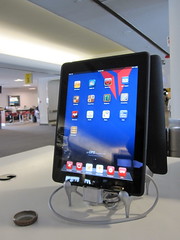
Playing with the iPadOK – we bought two iPads at work, and I was greeted with one this morning!

So I’m seeing if I can create a blog post using it. And guess what? I can!

But not easily, mind you. Let’s see – the pic, I was able to log into flickr and copy/paste the embed code for the image pretty easily. I was obviously able to log into my blog too, to do this post. Interestingly enough, for those of you familiar without he back end of WordPress – I’m using the HTML simple editor to type this. The fancier visual editor wouldn’t let me type in the text box. Go figure.

Also, to scroll around in the text box window, I just discovered I have to hold one finger down, then scroll with another finger. Otherwise, the whole screen moves. And I’ll have to get into the post on a pc to add categories to theta oust – I can’t scroll down on that window.

Typing is interesting, too – but possibly because I’m not used to the keyboard yet. It feels clunky to me, and I would suggest getting the external keyboard for any serious typing.

That said … websites are beautiful on this thing. In the vertical position, it shows more screen real estate. And the touch/use your finger thing instead of using a mouse is amazing, as should be expected.

The next couple of years in computer technology should be amazing, revolutionary ones, if my first experience with this thing is any indication.

Be the first to comment

Top Tech Trends – Ebook Readers and the iPad

by David Lee King on March 29, 2010

I was a panelist at PLA 2010′s Top Tech Trends session, and talked about ebook readers and the ipad as a top tech trend to watch in 2010. Here’s my outline for the session:

Ebook Readers and the iPad:

  • ebooks have been around wince 1971! that’s when the gutenberg project started!
  • 1998 – first ebook readers appeared

how many different models are there?

  • at least 20 different manufacturers

over 2 million free ebooks

  • 15 different file formats!
  • kindle, txt, epub, html, pdf, etc
  • epub
    • open free format – not proprietary
    • css, xml styling
    • default standard, not everyone (ie., kindle) uses it

Operating Systems on ebook readers:

  • linux
  • android
  • windows mobile/win ce
  • iphone OS

size

  • most are 6-8 inches or so
  • mobile version – iphone is an ebook reader, other phones

e-ink or LCD

  • e-ink – imitates the look and ease of readability of print while consuming little power

memory

  • most are in gigabytes
  • holds hundreds of books

connectivity

  • wifi
  • cellular networks
  • price – 150 to 750
still sorta like the 90s with cell phone or PDAs

why did I pick this for a top tech trend when they’ve been around for so long?
Apple likes to change things
  • Mac – changed the computer industry – mouse and GUI were pretty obscure untilt hat first mac came along in 1984
  • ipod – changed the music industry – pricing, formats, size, etc., mp3 players
  • iphone – changed the cell phone industry
    • touch screen
    • more than just a cell phone – games, internet, browsers, ipod, movies, calendar, email, twitter, facebook, etc, etc, etc
    • many copycats

iPad will do the same thing  – but to what industry?

  • gaming and movies
  • will probably change the ebook industry
    • better ebook reader
    • more like a book – flip the pages by touch
    • color
    • great screen
    • turn the thing to flip the screen
    • accessibility built in
    • and 5 of the 6 largest publishers are already on-board.

why?

  • money – they’ve seen itunes and the app store and want in

What might we have by end of 2010?

  • The iPad ships on April 3
  • iPad will be on version 2-3 by the end of 2010
  • will have made millions of publishers millions of dollars, Apple even more
  • price will have probably dropped
  • more publishers will be using the epub format (and wanting into itunes store)
  • copycats will start to appear

Issues for libraries to consider:

our patrons will start buying iPads soon.

  • does it work with Overdrive?
  • does it work with our catalogs?
  • can patrons plug them into your PCs?

staff issues

  • can your staff use them to help patrons who own one?

library stuff

  • can patrons check them out?
  • can your library buy them for patrons to use/check out?
  • battery life -do you charge the battery before handing them out to patrons? Do you have a place for multiple devices to be charged behind the circ desk (or wherever you might keep them)?

bigger issues

  • content licensing and DRM

12 comments

iPad – a Game Changer?

by David Lee King on January 28, 2010

I don’t attempt to predict stuff very often, but I think this one’s safe – I think Apple’s new iPad is most definitely a game changer.

Why? Because it combines so many things into one handy, easy-to-use device. Just watching the video about the iPad and poking around on the website a bit, you find out all that the iPad will supposedly do, including:

  • web browsing
  • email
  • photo viewing
  • watch videos (even YouTube videos)
  • listen to music (it has iTunes built in)
  • buy and read ebooks
  • a cool map
  • note taking
  • a calendar
  • Contacts list
  • iWork (Apple’s answer to Microsoft Office) is rebuilt for the iPad, so you have word processing, spreadsheets, and presentation software
  • The App Store works here, too, which opens up 140,000 apps that all do different things

And of course, it’s multi-touch. So instead of having to use a mouse or keyboard shortcuts to operate the thing … you just touch the screen. I’m just amazed that Apple seemingly rolled up a Microsoft Surface, a tablet PC, a video player, a netbook, an iPod, and an ebook reader, and came out with something light, cool, and truly unique. Except maybe the name – sorry Apple, but the iPad is a silly name.

Apple could turn this thing into a student’s best friend. Instead of carrying a heavy backpack around, students could use the iPad to carry all their textbooks (assuming Apple partners with textbook companies), any multimedia they need to watch, their word processor to write papers (or they could just use Google Docs via a wifi connection), multiple ways to take notes, communicate to classmates and teachers via email/IM/Facebook/Skype/etc. And still have their favorite photos, their grand music collection, and a couple of fun games with them, too.

How about for libraries? Think Reference Desk and roving reference here. It’s the same price as a netbook laptop. But probably easier to carry around, easier to show stuff to people, easier to make the text larger for people who need larger text (you just touch and stretch the screen with your fingers to make the text larger – just like an iPhone). And has a 178 degree viewing angle, so it would work well to show stuff to patrons.

Game changer? I think so … or maybe I’m just gushing at the cool new toy. What do you think?

27 comments

CIL2009: Handhelds & Mobile

by David Lee King on April 1, 2009

Ben Smith, Sheryl Bai, someone else…, Aaron Schmidt

First up – Handhelds at UCHC School of Medicine

PDA Program:

  • PDAs supported by the library since 2001
  • Library purchased PDAs for staff
  • Did an in-service class for staff
  • did some student and faculty training, too

Ben:

Current PDA Initiative:

meet with faculty, then test handhelds, create instructions.

Train students so they can be a resource to ther students. Cool.

They hold PDA clinics, help them install apps, etc.

Considerations:

  • which handheld platform?
  • Windows Mobile 2003 or Mobile 5?
  • Smartphones?
  • They’re limited because they’ve developed stuff on Windows Mobile platform, so they have to use those…

Smartphones:

  • two devices in one
  • cheaper
  • you have a phone contract too – have to make sure students understand this
  • screen resolution can be worse on a smartphone (aside – I love my iPhone)
  • not all have touch screen functionality

Handy software utilities:

  • dotPocket
  • DeepFreeze
  • ActiveSync
  • Microsoft Remote Display Control (displays the PDA on a computer screen, hence a live demo during a presentation)
  • My Mobiler
  • Windows Mobile Device Center

Chris Tonjes, Aaron Schmidt

Chris (CIO, DC Public Library)

their iphone app:

three layers – transaction layer, data layer, presentation layer (I think)

Goals:

  • continue horizontal integration of our ILS
  • presents an alternative delivery of online catalog – like most, not happy with their ILS. So this gave them a great excuse to start experimenting
  • first foray into mobile world
  • leverages the power of the iTunes app store – the delivery method of the future
  • model for other projects
  • provides tangible near term ROI and extended library use and awareness
  • leverage! Code and analysis used for …
  • They have a blackberry version too
  • more online catalogs! playing with VuFInd
  • Integration/direct download target for content from our electronic resource providers 9Gale and Overdrive)
  • iPhone 3.0! Ecommerce – fine and other payments from within app!
  • model for near future projects (kindle or other readers)

Showing their release roadmap – they are planning for the future

DCPL iPhone App – fast facts:

  • 2199 downloads so far
  • 85 in the last week placed holds with it
  • works with SirsiDynix enterprise portal search discovery tool
  • plug in web service
  • took about 100 total hours of programming time
  • we can forecast LOE to modify for use with ibistro and elibrary
  • code available for download

DCPL SMS Text Msg – Bill

Reach out to the younger people is a goal

they send notices, announcements

patrons opt-in on website registration page

increase library event participation via same day notifications – great reminder of events.

messages and notices tailored to SMS limitations/requirements (ie., message size & delivery)

Normal txt stuff: small messages, if you have more than one to send, you have to do each as separate messages

Cost to the library = 0

They schedule the txt msgs in the middle of the day – important point. You don’t want them sent at 2am! And you WANT them sent when people can see them, for reminders…

Aaron:

in charge of how this should look and feel.

started making paper prototypes

Even did user testing with paper mock-ups to see if the idea worked

It IS possible to design a BAD iphone app… they wanted to avoid that

There’s a PSD element library for iphones so you can quickly create a photoshop mockup

Giving examples of how it works

Next?

QR codes,barcode reading.

HUGE potential for these mobile devices.

1 comment

How’s the iPhone Working Out?

by David Lee King on September 29, 2007

Video thumbnail. Click to play
Click To Play

Quicktime version | YouTube version

I’ve owned an iPhone for about two months now, and thought I’d make a video sharing my likes and dislikes.Dislikes:

  • Stocks icon – works great, but I could care less about the stock market, so it’s not terribly useful to me
  • Calendar – again works great… but I have a work calendar and an everything else calendar… so I have both synced up to Google Calendar. That works fine. Usually. [translation=I haven't quite figured it all out yet].

Likes: Pretty much everything else. Ease-of-use is awesome. Included apps are great. I originally thought I’d get a Treo, but waited for the iPhone to come out to see what it was like… and haven’t been disappointed!

Update: I had a little trouble viewing the video, so I’ve been playing around with it. It should work now! And there’s a .mov and a YouTube version now, too.

6 comments