slides

My Australia Talks

by David Lee King on September 30, 2011

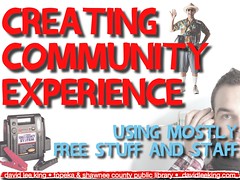
While in beautiful Australia, I met lots of cool librarians … and gave a couple of presentations, too. Here are the Slideshare versions of the presentations – you had to be there to get the full effect, but still – it gives a glimpse.

Freak Out , Geek Out, Seek Out – I found a couple of Australia examples for this presentation, which was fun.

Creating Customer Experience. At VALA, I combined this one with the Freak Out presentation above.

Modern LibGeek Landscape – some Provocative Questions. A bit of explanation on this one. It was meant to start discussions, and be a bit “out there.” Hence the odd questions!

2 comments

Doing a Presentation with the iPad

by David Lee King on July 1, 2011

A couple of weeks ago, I gave a presentation using my iPad, and it worked out pretty well! I used the iPad version of Keynote (Apple’s Powerpoint-like presentation software). Keynote has a handy-dandy presenter notes feature that is really easy to use, so your notes are on your screen, and your slides still appear on the LCD projector – in a much easier and user-friendly way than Powerpoint.

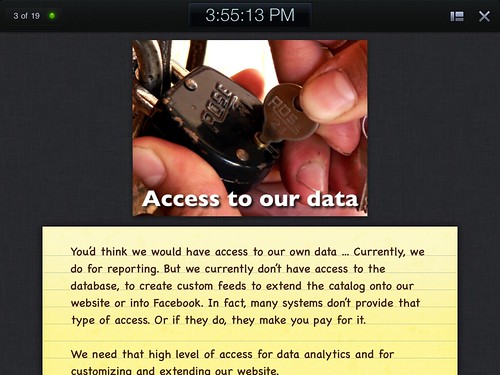
Guess what? The iPad version of Keynote does the same thing. The screengrab above shows the presenter notes view on the iPad. If there’s more text than shows on the screen, just use your finger to scroll down to the rest of the text.

You also use your finger to advance slides – just swipe the screen, and slides advance. Swipe the other way to go back a slide. Pretty simple to use!

Now – how did it work?

  • It was really easy to set up and use – I just needed to get the iPad VGA adapter, and plug that into our LCD projector. Then the iPad magically did everything else, so I didn’t have to mess with screen resolution compatibility, etc.
  • I was able to stand up in front of the room (I was presenting for the library’s Board of Trustees, who sit at a long table) with no podium – I just held the iPad, and finger-swiped away.

There were a couple of oddities, too:

  • If you stand with the iPad, you need to hold onto the VGA cable. Otherwise, the weight of the cable will pull iPad VGA adapter out of your iPad. Not good.
  • Finger swiping the slides felt a bit odd to me – I’m used to clicking a hand-held thingie to advance slides.
  • Most important – the on-screen slide appeared first, followed by the presenter notes, so there was a bit of lag time. It looked weird for a bit, so I was swiping back and forth, looking for the correct notes, until I figured out the 1 second lag. Once I figured that out, I was ok.

So – looking to do a presentation without having to lug around a laptop? You might consider using an iPad/Keynote setup – easy stuff!

7 comments

10 Tips to Do Presentations Like Me: Don’t Use Templates

by David Lee King on January 7, 2011

People tell me they like the way I do presentations … so I thought I’d share some tips and tricks I’ve learned along the way.

Tip #1: Don’t Use Templates

Ever. They are evil. Well, ok – they’re probably not that bad. But they sure do suck the creativity out of creating a slide deck!

Generally, I start with a clean, blank slide. I remove all the text boxes, title boxes, etc. Or just pull up an actual blank slide.

For backgrounds/themes, I usually just use a simple white, black, or gradient background (though once in awhile I’ll use a fun textured background that I find somewhere – it really depends on my mood).

From there, I actually drop parts of my outline into the presenter notes part of the slide (so I still have a blank slide). Then I start figuring out what words are important enough to actually use for the slide, and decide what type of image might work best on the slide, to support the point I’m trying to make.

Then I start dropping text and images onto the slide. I usually stick with 1-2 font styles, and make heavy use of layering and shadows (so parts of the slide “pop” out at you).

The image accompanying this blog post is the title slide to my newest presentation (giving it this Sunday at ALA Midwinter). White background, fancy font with a shadow, and some images (that relate back to the three main points of my presentation).

Simple, yet effective. And fun, too (if you like creating slide decks anyway).

10 comments

Your slides aren’t the presentation

by David Lee King on November 15, 2010

I sometimes see/hear a presenter who, though they probably don’t realize this, ends up talking in outline form. They’re looking at their outline that’s up on the screen, and they don’t even read the whole screen – instead, they summarize the words of their outlined slide … and end up sounding like a rough-draft outline of their presentation.

Remember this – your presentation is not the slides. And believe me – I spend a lot of time on my slides, to make them as attractive as possible, sometimes to make them funny, and always to have them relate to what I want to say. I DO think slides are important – they work great at conveying information visually.

But I have also realized that the actual presentation is me – it’s the words I say. Even if I’m summarizing something on the screen – I still need to speak clearly, in complete sentences, with a good explanation. A story that summarizes what’s on the screen is even better.

Just something to think about if you present.

9 comments

SEFLIN Talks

by David Lee King on April 24, 2009

This week, I spoke in a couple different places… I visited Florida and lead a couple of SEFLIN workshops. Great fun! The first talk was all about Mashups:

and the second talk was on emerging trends for libraries:

Be the first to comment

SXSWi2009: Presenting Straight to the Brain

by David Lee King on March 16, 2009

Panelists:
Jared Goralnick, Productivity Evangelist, AwayFind
Cliff Atkinson, BBP Media
Craig Ball, Pres, Craig D Ball PC
Kathy Sierra, CreatingPassionateUsers

#brain is the hashtag

Jared says:
- we’re distracted
- engage your audience
- introducing the panelists

Cliff says:
- no research that says what we’re doing with presentation software is the best way to learn and communicate
- talking about research that shows stuff in presentations like charts, bullet point words, etc don’t really work
- we have an “eye of the needle” task in presenting – we have a lot of info we want to share, and our audience’s limits of short-term memory
- sync the two channels – visual and aural
- guide attention – show and say what we want our audience to pay attention to
- we’re shifting from looking at presentations as a sheet of paper to more of a filmstrp approach with a beginning, middle and end

Kathy Sierra says:
- your brain and mind are in an epic battle
- the brain’s spam filter – we can’t tune it very well
- the brain cares about chemistry – stuff that sends a little chemical signal
- novel, strange, or a little weird get noticed. stuff that stands out (a purple duck in a sea of yellow ducks)
- thrilling, exciting, scary, innocent and might need help
- sense of joy
- faces – real, drawn, etc
- brains love to resolve things and fill things in

The brain does not care about:
- tablet PCs, code
- cheap trick vs useful tool (putting cool face with code) – makes people think about their girlfriend, and not the code
- talk to the brain, not to the mind (her main point)

Craig Ball says:
- he’s been a trial lawyer
- talking about juror retention. ear input only, not so hot. eye also was better. hearing & seeing – bingo!
- showing how he pulled the imprtant stuff out of boring documents
- uses Ken Burns effect sith backgrounds of slides
- he actually took parts and pieces of a photo out, then put them back in using the animation feature of powerpoint (that almost no one uses)
- showing how he uses those animation techniques to introduce complex ideas to people

What’s the biggest mistake people make?
- Cliff – using the screen as speaker notes. Instead, use the screen as visual cues
- Kathy – showing a slide of a brochure vs an instruction manual. Don’t teach about the tool. Instead, teach about what people want to DO with the tool.
- think more like a marketer
- Craig – when you talk AND put text on the screen at the same time, you’re forcing people to make a choice, and you wil lose

Lightning talk format or going through lots of slides quickly – is this helpful?
- Kathy – that’s not the important question – it’s a technique. The better question is what is it that happens between your ears when you present?

Visual persuasion tips?
Craig – go to my website, I’ve written lots aobut it

When is it appropriate to use bullet points?
- Cliff – that’s a loaded question.
- our culture is stuck in a bullet point mindset …
- when is it appropriate to put bulletpoints in a filmstrip? Never. Does anyone ever put up the script in a film? No.
- instead, think story with a beginning, middle and end.
- Kathy – she sometimes uses bulletpoints. Sometimes you just want to show a collection of stuff
- Craig – it depends. But don’t read the bulletpoints to people.
- if the bulletpoint has to wrap, it’s a bad sentence – change it.
- is there a better way to present it? Then use that instead of a bulletpoint

How can we present so that we don’t leave just with a good reaction, but with good stuff to take away?
- Kathy – orientation is everything – how you view the audience and your role to the audience is everything.
- in a panel on doing better presentations – that’s the wrong focus. Instead, we need to focus on what YOU do.
- Focus on how to make individuals int he audience do whatever they do better.
- Cliff – like a modern website – focus on the user!

Backchannel thing – how does that affect people’s ability to retain info?
- Craig – he knows he has failed his audience when his lawyers go into “blackberry prayer” mode.
- Cliff – it depends. If you use it as a note-taking device, that’s cool. Audiences don’t put up with bad presentations anymore. We can now hear when we’re off the mark.
- Kathy – not that important of a question. She trusts that we’ll do whatever we need to do. If the presenter has done their job, it’s ok.

end stuff:
Craig:
- powerpoint is a lousy word processor
- never use a template!
- tap into popular culture

Kathy:
- use puppies.
- ask this for each slide: does it have a pulse? Is it begging to be there?

Cliff:
- … read his book.

Q&A:
Q: she works at NIH – there’s an expectation for slides to be … boring. What to do?
A: Cliff – powerpoint culture – it’s strong in research organizations. So start by educating people that what they’re doing is not based in research
A: Kathy: Include both, switch back and forth.

Q: Varying education levels, lots of computer-based training. Not sure if she’s engaging them… what to do?
A: Cliff – how people learn is the same in live and online training. So use the same types of concepts.

Q: he presents to executives – they interrupt a lot – what to do? and his presentations need to be portable – how to do it when there’s no voiceover?
A: Cliff – include text notes in with the slide in a handout, pdf format – works both live and later.
Cliff – on the first part of the question – open slides up to dialogue – prompt the conversation so they feel like they can talk without interrupting.
A: Craig – record your presentation while you’re doing it – then you have the audio too.

5 comments