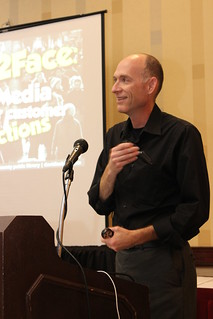
speaking

10 Tips to Do Presentations Like Me: The Whole List

by David Lee King on February 4, 2011

My last 10 posts have been talking about how to improve your presentations. Hope you found some of the tips useful! Here are all 10 tips in one handy list:

10 Tips to Do Presentations Like Me:

  1. Don’t Use Templates
  2. Use Presenter Notes
  3. Use Presenter View
  4. Learn Your PC
  5. Use Screenshots
  6. Do What You Said You’d Do
  7. Tidy up Those Transitions
  8. Rehearse
  9. Interact with the Audience
  10. It’s a Performance

Have anything to add? Something I missed? Please add it in the comments!

8 comments

10 Tips to Do Presentations Like Me: It’s a performance

by David Lee King on February 3, 2011

Tip #10: It’s a performance.

Oh yes it is.
Your talk is most definitely a performance, and you are most definitely a performer.

Are you on a stage? On a podium? Talking to a room full of people? Ever gotten an anxiety attack before your talk? Yep – you’re a performer.

Your presentation isn’t just the words you’re saying. It’s not just the slides, or your movements, or your transitions … it’s not even just your content. It’s all of that – content, delivery, visual cues, the way you talk, etc – all rolled up into a big wad of performance.

Those people who read “academic papers” word for word? Those people who do the PowerPoint 10-points-per-slide thing, and basically read their outline? They probably have great content. Sit down with them for dinner, and let them share – it’ll be amazing, I’m sure. But that thing they just did on the stage, in front of people? It was a performance … but probably not a very good one (and believe me – I’ve been there, done that, so I’m guilty as charged).

But you? You know better. You have great content. A great idea or new angle that you want to share. And you know that to deliver it well in a presentation setting … well, you have to deliver great content, and turn in an engaging performance, too.

No, you don’t have to be the most amazing presenter in the world. But DO give what you’re doing on stage some thought, and I’m guessing that you’ll be much more interesting than “those other presenters.”

Thoughts?

Pic by libraryman

7 comments

Tip #7: Work on Introductions, Transitions, and conclusions.

Intros, conclusions, and transitions have always been a challenge for me – in writing and in speaking! In college, me professors frequently said “David, you need a transition here” or “you need a stronger conclusion.” So I’ve been working really hard on those transitions.

And I’ve noticed that I’m not alone. I’ve seen more than one presentation where the presenter was introduced, then starts their slides with an uncomfortable “um … I guess let’s get started now” and jumps right into the presentation. Or when they’re done, they end with a weird smile and a “um, I’m done now” (I have to admit, I’ve done that myself).

They’re not really that hard to do, either. Here’s what you’ll see me do:

Intros:

  • Usually, someone announces who you are. If they don’t, take a minute to introduce yourself. It gets you used to talking, and gets the audience used to you
  • You might start off with a question, or a statement (sort of a statement of purpose for the presentation). Then briefly cover what you’re going to talk about.

Transitions:

  • also easy. At the end of one point, flow into the next point with something that relates to it. Or at the least, say something like “we just learned about this. Next up, let’s talk about this for awhile.”
  • These transitions make it easy for people to follow along or take notes.
  • If you like to walk around while giving a presentation, it helps visually to actually move to another spot while making your transition
  • And of course, show something like “point #2” up on the screen if you’re using slides.

Conclusions:

  • Remind people what they just learned – something like “we’ve just covered these 5 things.”
  • Then I like to end with some broad statement about what can happen if you put these ideas into practice (ie., “put these easy steps into practice and you’re bound to improve your website and make your customers happy” or something like that).
  • Actually have an “I’m done now” slide. I wrote a book and have a blog, so my last slide says “Thank You,” shows my book cover, and displays my website’s URL.
  • If you know you’ll have a question and answer time afterwards, you might just show something like “Q & A time” on a slide, then say “it’s time for questions.”

Improve those transitions – I promise to work on them too!

Pic by dnnya17

Be the first to comment

Tip #6: Talk about … what the program description says you’re going to talk about.

Has anyone ever read the description of a presentation, thought “that sounds interesting, I think I’ll attend it” … and then left highly disappointed, because the presenter didn’t actually cover what the description said they’d cover?

Yep. Me too. And that has never made any sense to me. Guess who writes those descriptions? Usually, it’s the presenter.

So presenters – if you say you’re going to cover five tips in your presentation, or answer three questions, or mention a list of take-aways … actually include those things in your presentation!

I know, I know – lightening-fast changes in technology mean that … well … technology changes. And if you’re presenting about technology, well darn – your presentation content might have just changed up a week before you actually present it.

In that case, make sure your description and your list of take-aways are general enough that they still make sense in 6 months time. When writing your description, don’t say things like “you’ll learn how to use Delicious.com to make web-based bookmarks (because that service might disappear). Instead, say something like “I’ll teach you how to create web-based bookmarks using the best tools available” or “… using tools like delicious.com.” See the difference?

So presenters – go clean up those descriptions!

Be the first to comment

10 Tips to Do Presentations Like Me: Use Screenshots

by David Lee King on January 18, 2011

Tip #5: Use screenshots, not the live web.

I’ve seen this (and experienced it, too) – someone wants to show off their new website or a new web tool during a presentation. So they go to the site, and then discover the either the conference center’s web access is down, or it’s not fast enough to handle the demonstration.

Then the presenter is stuck – that part of the presentation depended on the web actually working! Darn it.

Here’s the solution – use screenshots. The live web isn’t predictable … especially when you’re standing in front of a room full of people … and will most definitely slow you down during a presentation. Even if web access is working great, using it during a presentation will still most likely slow the presentation down as you wait for the next page to load.

So if you can, use screenshots to get your point across. Screenshots often work fine during a presentation, and can speed things along. They also give you the option to be a bit creative. For example, int he screenshot accompanying this post, I took a screenshot of a website, and then layered some text and soem arrows to help get my point across.

Obviously, sometimes you will need to go to the live web – training sessions or in-depth “how does this work” sessions pretty much require the real thing. But in most other cases screenshots probably work just as well, if not better.

Something to think about!

2 comments

10 Tips to Do Presentations Like Me: Learn Your PC

by David Lee King on January 14, 2011

Tip #4: Learn how to use your PC (or the PC you’ll be using for the presentation)

I have to admit it – it bugs me when someone stands up in front of everyone – especially at a tech conference – accidentally moves to the next slide … and can’t figure out how to go back to the previous slide.

They get all flustered, blame “technology,” and finally decide to solve the problem by getting out of presentation mode, finding the proper slide, then restarting the presentation. Or by just skipping that slide.

I get it – when we’re standing up in front of people giving a presentation, it’s weird – and we sometimes get a bit flustered when things go wrong. That makes sense.

Because of that, I’d suggest this – take 10 minutes to figure out that PC, and the software you’re using for the presentation. Find all the different ways to advance slides (spacebar, arrow keys, etc). Figure out how to go back to the previous slide (as in the left/right arrow keys).

If you’re planning to do some slightly advanced stuff like playing a video, either in-presentation or not, make sure you test it multiple times – in your office AND on stage. Make sure you know how to turn up the audio.

Do this little bit of prep work, and you’ll look that much more confident and knowledgeable. That weird feeling you get when you’re doing a speaking gig? It’ll still be there (the only way to get rid of that is lots of experience or being an uber-extrovert) … but at least you’ll know how to go back to that slide you just skipped!

1 comment

10 Tips to Do Presentations Like Me: Use Presenter View

by David Lee King on January 13, 2011

Tip #3 – use the Presenter View during your presentations!

The image above is my presentation … in presenter view. I always use presenter view (unless I’m doing a webinar from my office). Here’s why:

  • Presenter view (in Keynote anyway) displays two slides at once, so I know what’s coming up next
  • presenter view has those notes I mentioned in Tip #2 – so if there’s something I want to say a certain way, I can simply glance down at my notes on the screen – pretty handy!
  • Notice the timer in the upper right hand corner? Huge help for making sure I stay on schedule.

If you get too wordy in the presenter notes box, you have two options: 1. a scroll bar will appear – sorta awkward on the fly, but it will work; 2. break that idea into multiple slides. You can even use a copy of the current slide – it won’t change what anyone sees, but your notes will change “behind the scenes.”

Pretty tricky thing, that presenter view!

5 comments

10 Tips to Do Presentations Like Me: Use Presenter Notes

by David Lee King on January 11, 2011

Tip # 2 – always use presenter notes!

The image above shows one of my slides, and the slide’s presenter notes. I LOVE presenter notes! I mentioned one handy use for the presenter notes section in Tip #1 – using them to store the outline of your presentation while you customize your slides.

But the presenter notes section really shines if you actually use it during your presentation. Ever watched someone give a presentation using a laptop and PowerPoint … but they also had a bunch of paper notes that they shuffled through and read? There’s really no need to do that … if you use the presenter notes part of your software.

Both PowerPoint and Keynote have this feature. Basically, I put the stuff I really want to say in the presenter notes box of each slide, rather than actually on the slide itself.

Doing this allows me to use the actual slide to accompany the presentation … rather than allowing my slide to BE the actual presentation (we’ll get to that idea a little later on). I’ll find an image, or a couple of words, that highlight the main points of my actual presentation, and put them on the slide, rather than my whole outline for that point.

Then I use the presenter notes as a memory aid during my presentation. If there’s a phrase I want to say a certain way – I put that phrase in the presenter notes box. If there’s a number that I can’t remember … it goes in the presenter notes box.

To me, that presenter notes box is one of the most useful tools in Keynote (my presentation software of choice).

How about you? Do you use the presenter notes box? What do you use it for? Please share!

10 comments

10 Tips to Do Presentations Like Me: Don’t Use Templates

by David Lee King on January 7, 2011

People tell me they like the way I do presentations … so I thought I’d share some tips and tricks I’ve learned along the way.

Tip #1: Don’t Use Templates

Ever. They are evil. Well, ok – they’re probably not that bad. But they sure do suck the creativity out of creating a slide deck!

Generally, I start with a clean, blank slide. I remove all the text boxes, title boxes, etc. Or just pull up an actual blank slide.

For backgrounds/themes, I usually just use a simple white, black, or gradient background (though once in awhile I’ll use a fun textured background that I find somewhere – it really depends on my mood).

From there, I actually drop parts of my outline into the presenter notes part of the slide (so I still have a blank slide). Then I start figuring out what words are important enough to actually use for the slide, and decide what type of image might work best on the slide, to support the point I’m trying to make.

Then I start dropping text and images onto the slide. I usually stick with 1-2 font styles, and make heavy use of layering and shadows (so parts of the slide “pop” out at you).

The image accompanying this blog post is the title slide to my newest presentation (giving it this Sunday at ALA Midwinter). White background, fancy font with a shadow, and some images (that relate back to the three main points of my presentation).

Simple, yet effective. And fun, too (if you like creating slide decks anyway).

10 comments

5 Mic Tips for Presenters

by David Lee King on July 6, 2010

I see lots of people give presentations … and hear lots of presenters with microphone problems.

I know a little bit about microphones and how to get the most out of them, so here are 5 Mic Tips for Presenters!

Have some microphone tips not listed? Add them in the comments!

5 Mic Tips for Presenters:

1. Get close to the mic! Most mic and volume problems are solved if the presenter simply moves his/her head closer to the mic.

  • Optimally, you should be about 4-6 inches from the mic, and an easy way to measure that is by using the clenched fist rule. Simply put your fist up to your mouth, and put the mic on the other side of your fist. That puts you about 4 inches or so from the mic.
  • Using a lavalier? They don’t have to be as close as a handheld-type mic, but you still need to position the lavalier to it’s pretty close to your head. Right under your neck is a great place for the lavalier mic, so for guys wearing ties, clipping the mic right underneath the knot of your tie works great. Women, same thing – wear “lavalier-friendly” clothes (so you have a place to pin the mic).

2. Speak directly into the mic (or slightly angled if your P’s and S’s are popping a lot). I see lots of speakers hold a mic down by their chest. Bad! Be bold, be brave … and talk into the mic.

3. Do a sound check before the event. Make sure to talk into the mic like you normally would during a presentation – so no embarrassed whispering. Also, use that time to get familiar with the mic. See if it has an on/off switch, a mute button, a battery light, etc.

4. Avoid feedback. That high-pitched, squeaky feedback is icky, and it’s really pretty easy to avoid, if you follow these three steps:

  • if you start hearing feedback, move closer to the mic – not farther away from it. If the mic isn’t picking up a strong signal from you, it will start picking up other noises, including your voice from the monitors… and that causes a feedback loop (ie., those terrible screechy noises that everyone hates).
  • don’t cover the mic with your hand. That’s sorta the same as cupping your ears (ie., more ambient noise = more likely to feedback).
  • Stay away from the monitors! If you like to walk while talking, and there are monitors on stands in the room … stay away from them.

5. Use the on/off or mute button. If you need to cough or say something privately, either step away from the mic or use the on/off/mute buttons. That’s what they’re for.

Hopefully, these simple tips will help you be a better presenter. Got any mic tips of your own? Share them in the comments!

cool mic pic by hiddedevries

8 comments